
Set up AI customer support on your Shopify store in 15 minutes. Step-by-step: tool selection, install, configuration, testing, and launch. No coding needed.
How to Set Up AI Customer Support on Shopify in 15 Minutes
Your Shopify store gets 50 support emails before lunch. Forty of them are "where's my order?" You've been copying and pasting the same tracking reply since Monday. Your afternoon is shot before it starts.
Here's the thing: setting up AI customer support on your Shopify store takes less time than your average Zoom standup. We've walked merchants through it, timed it, and the setup-to-first-resolved-ticket clock usually lands somewhere around 12 to 18 minutes. Call it 15.
This isn't a strategy post. We're not going to tell you AI is the future of commerce and leave you with a list of "key takeaways." This is a step-by-step walkthrough. By the end, you'll have an AI agent answering real customer questions on your live store.
Who this is for: Shopify stores handling 50 to 500+ support tickets a month who want the repetitive stuff off their plate. If you want a product comparison first, we wrote one of those too.
Following along? Start your Squire free trial and set up as you read. No credit card. Takes about 90 seconds to install.
Before You Start: 5 Minutes of Prep
Every guide skips this part and then wonders why merchants get stuck at configuration. Don't be that merchant.
Write Down Your Support Policies
Your return policy. Shipping windows. Exchange rules. Warranty terms. If they already live on your Shopify store pages (Settings → Policies), you're halfway done because most AI tools pull directly from those.
But here's where stores trip up: the policies on your website say one thing, and your team does something different. You offer 30-day returns on the page but your team routinely approves 45-day returns for loyal customers. The AI doesn't know about that unwritten rule unless you tell it.
Spend 2 minutes writing down any exceptions or judgment calls your team makes that aren't on the website. This single step prevents 80% of early AI support headaches.
Pull Your Top 20 Questions
Export your last 100 support emails. What keeps coming back?
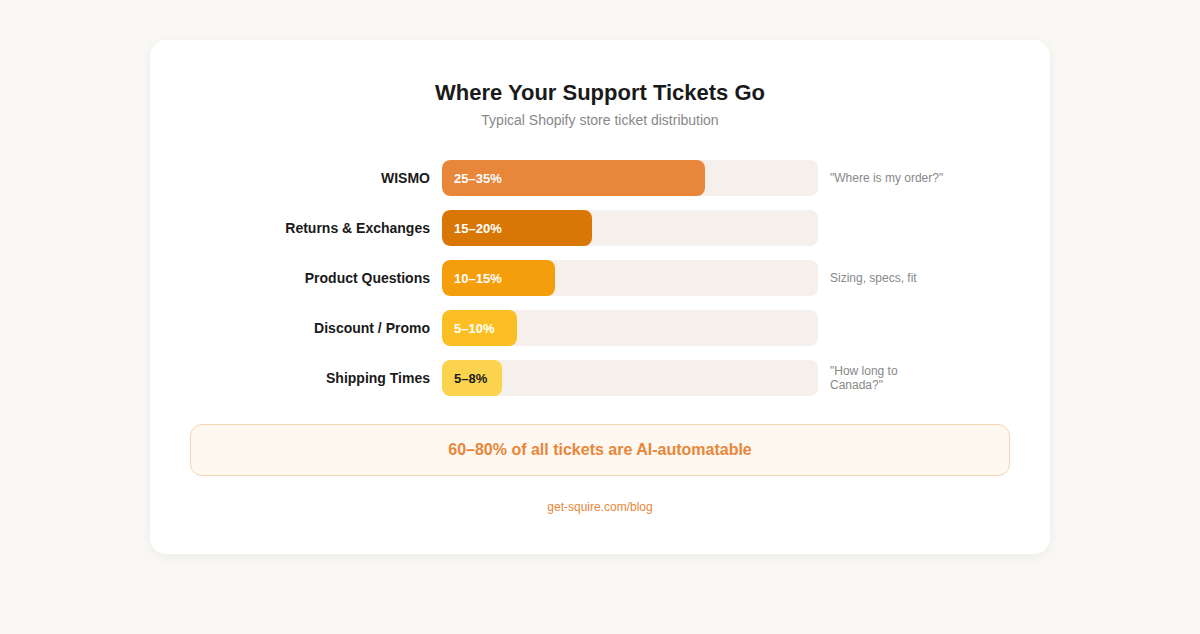
For most Shopify stores doing $500K to $5M in revenue, we see the same distribution every time:
- WISMO ("where is my order?") accounts for 25-35% of all tickets
- Returns and exchanges sit around 15-20%
- Sizing and product questions make up 10-15%
- Discount code issues, another 5-10%
- Shipping times to specific regions, 5-8%
That's 60-80% of your entire support volume in five categories. These are the tickets AI eats for breakfast. Know yours before you start configuring.
Pick Your Brand Voice in One Sentence
Casual and emoji-friendly? Professional and precise? Somewhere between "best friend" and "very competent stranger"?
One sentence is all you need. "Friendly, helpful, uses first names, never says 'per our policy.'" Done. You can refine later, but the AI needs a starting point, and "figure it out" isn't one.
Step 1: Choose Your AI Support Tool
Not all AI support tools do the same thing. And the difference between the categories isn't subtle: it's the difference between paying someone $4,000/month to read emails and paying $149/month to not need them.
Chat Widget vs. Full AI Helpdesk
Two very different animals.
Chat widgets (Tidio, Crisp, LiveChat) add a chat bubble to your store. Some have AI bolted on. Tidio's Lyro, for example, can answer FAQ-style questions from your knowledge base. But it can't process a return. It can't look up a tracking number and tell a customer their package is in Memphis. It answers the question "what's your return policy?" but not "I want to return this jacket I bought last week."
Full AI helpdesks (Squire, Gorgias with their AI add-on) replace your entire support workflow. The AI doesn't just answer questions. It pulls your Shopify order data, checks carrier tracking, initiates returns, and resolves tickets end-to-end. Your team still sees everything in a shared inbox and can jump in when needed.
If you're doing fewer than 20 tickets a month, a chat widget is fine. Past that threshold, you'll outgrow it fast and end up migrating anyway. Save yourself the hassle.
The 4 Questions That Actually Matter
When evaluating any tool, ask these:
1. Can the AI take actions on Shopify orders? Not just answer questions about them. Can it actually trigger a return, update an address, check real-time tracking? If the answer is "no, but we're working on it," move on.
2. Does it include all channels, or does each one cost extra? Email, chat, Instagram DMs, Facebook Messenger. Tidio's Growth plan starts at $49/month for 250 conversations, but Lyro AI is a separate add-on at $32.50/month for just 50 AI conversations. At 400 human conversations plus 200 AI conversations, you're north of $150/month and you still don't have a helpdesk. Gorgias charges per ticket plus extra for their AI automation. These costs stack up in ways the pricing page doesn't make obvious.
3. How is it priced? Per-seat fees punish you for growing your team. Per-ticket fees punish you for getting more customers. Per-conversation pricing with all features included is the only model that doesn't penalize growth.
4. How long does setup actually take? If a vendor says "our onboarding team will schedule a call next week," that's code for "this is complicated." You should be able to go from install to live in one sitting.
Our Recommendation
We built Squire, so we're biased. But we're also transparent about that bias, and here's why we think it's the fastest path to live AI support:
- Full AI helpdesk with autonomous ticket resolution
- Every feature on every plan (Starter at $49/month, Growth at $149/month, Pro at $349/month)
- All channels included: email, chat, Instagram, Facebook Messenger, SMS coming soon
- No per-seat fees. Your whole team gets in.
- Shopify-native: one-click install, pulls your store data automatically
- 15-minute setup. That's not marketing copy. We timed it.
For stores that need something different (maybe you're locked into Zendesk, or you only want chat), our comparison of the top AI chatbots for Shopify covers the field. And if you're weighing Gorgias specifically, we wrote that comparison too.
Step 2: Install and Connect (5 Minutes)
We're using Squire for this walkthrough. The broad strokes apply to any tool, but the specific steps are ours.
Install from the Shopify App Store
Search "Squire" in the Shopify App Store. Click Install. Approve the permissions (Squire needs access to orders, customers, and products to actually help your customers).
One-click Shopify connection pulls your store data, products, customer history, and policies automatically. No CSV uploads. No manual data entry.
Time: about 90 seconds.
Connect Your Email
This is where your support emails live. Gmail and Outlook both connect via OAuth: click the button, authorize, done. If you're on a custom domain with IMAP/SMTP, you'll need your mail server settings (your hosting provider has these).
Why this matters: once connected, the AI monitors your support inbox and responds to incoming tickets. Your team still sees every conversation in Squire's shared inbox. Nothing disappears into a black box.
Time: about 2 minutes.
Connect Social Channels
Facebook Messenger and Instagram DMs are optional but worth doing. Each one is an OAuth flow: click connect, authorize the page or account, and you're live. If 15% of your support volume comes through Instagram (and for fashion and beauty brands, it's often higher), leaving this disconnected means 15% of your customers wait for a human reply.
Time: about 2 minutes if you do both.
Step 3: Configure Your AI (5 Minutes)
This is the step that separates tools that work from tools that frustrate your customers. Spend the 5 minutes here. It pays off immediately.
Feed It Your Policies
Squire reads your Shopify store pages automatically: return policy, shipping policy, FAQ, the works. But remember those unwritten rules from the prep step? This is where you add them.
"We accept returns past 30 days for orders over $200." "Customers in Canada get free return shipping, everyone else pays." "If someone mentions a damaged item, offer a replacement before a refund."
Paste your top 20 questions and the ideal answers. It gives the AI a head start and saves you from tweaking responses one at a time later. We've seen merchants who skip this step get 40% resolution rates in week one. Merchants who do it? Closer to 55-60%.
Set Your Brand Voice
That one-sentence voice description from earlier? Enter it here. Squire adapts its responses to match.
A D2C skincare brand we worked with wrote: "Warm, encouraging, uses the customer's first name, never clinical." Their AI responses read like their best support rep on a good day. A premium furniture store went with: "Polished and knowledgeable, concise, no emojis." Completely different tone, same tool.
You can also add specific phrases to use ("Happy to help with that!") or avoid ("Per our policy" is a popular one to ban). The AI respects these constraints across every channel.
Configure Escalation Rules
This is the safety net, and it matters more than most merchants think.
Default behavior: the AI handles what it can and escalates what it can't. For most stores, the defaults work. But you'll want to customize a few things:
- Always escalate: threats of legal action, requests for management, anything involving personal injury
- Escalate after one attempt: customer expresses strong frustration (the AI detects sentiment)
- Never attempt: warranty claims over a certain value, PR-related inquiries
Squire notifies your team instantly when something escalates, with the full conversation history attached. Your rep doesn't start from zero. They pick up exactly where the AI left off.
Step 4: Test Before Going Live (3 Minutes)
Skipping testing is the #1 mistake we see. And it's always the same story: merchant goes live, first customer asks something slightly unusual, AI gives a weird answer, merchant panics and turns everything off. Don't be that merchant.
Send Yourself 5 Test Messages
Open the chat widget on your store (or send an email to your connected support address) and play customer. Hit the big five:
"Where is my order?" Does the AI pull real tracking data? Does it give a specific delivery estimate, not just a tracking link?
"I want to return this." Does it walk through your return policy? Does it actually initiate the return process, or just link to a page?
"What size should I get? I'm usually a medium." Does it reference your product's sizing chart? Does the answer feel helpful or generic?
"This arrived damaged." Does it apologize, offer a solution (replacement or refund), and escalate if the damage is severe?
"Your shipping is too slow, this is ridiculous." Does it stay calm, empathetic, and on-brand? Does it escalate the frustration to your team?
Five tests. Three minutes. Saves you from every "AI said something dumb to a real customer" horror story.
Check the Edge Cases
Send something the AI definitely doesn't know. "Do you sell wholesale?" or "Can I visit your warehouse?" The correct behavior is escalation, not a guess. An AI that confidently makes up answers is worse than no AI at all.
Test in a second language if you serve international customers. Ask something rude. See how it handles the curveballs. Better to find the gaps now than in your Trustpilot reviews.
Step 5: Go Live (2 Minutes to Launch, 30 Days to Optimize)
Flip the Switch
Enable live mode. That's it. Incoming tickets now route through the AI first. Your team still has full visibility in the shared inbox. They can override any AI response, take over a conversation, or add internal notes.
You're not handing the keys to a robot and walking away. You're adding a very fast, very consistent first responder that handles the routine stuff so your team can focus on conversations that actually need a human brain.
Your First Week: What to Watch
Pull up your dashboard daily for the first 7 days. Here's what matters:
Resolution rate. What percentage of tickets is the AI closing without human help? Week one, expect 40-60% for a well-configured setup. If you're below 30%, check your policy uploads. Something's missing.
Response time. Should drop from hours to seconds on day one. If it doesn't, check that your email connection is working and the AI is actually enabled on all channels.
Escalation reasons. Look at what the AI is punting to your team. If 40% of escalations are the same question, you can probably add that answer to the AI's knowledge base and cut escalations by a third overnight.
Customer satisfaction. Monitor your first 20-30 AI-resolved conversations. Read the transcripts. Are customers getting what they need? Are the responses on-brand? One merchant told us she read every AI transcript for the first week and was "honestly kind of annoyed at how much better it was than our afternoon shift." Her words.
The 30-Day Tune-Up
After a month, you'll have real data. Use it.
Most stores see their resolution rate climb from that initial 40-60% to 65-75% by day 30, just from adding edge case answers and tweaking voice settings. By month three, well-configured stores hit 70-80%.
Review your most common escalations weekly. Each one you address is one fewer ticket your team handles tomorrow. It compounds. A store doing 300 tickets/month that improves resolution rate from 50% to 70% takes 60 tickets off their team's plate. Every month. That's a part-time hire you don't need to make.
5 Setup Mistakes That Tank Your AI Support
We've watched stores make all of these. Some of them more than once.
1. Launching without testing. Already covered this, but it bears repeating. One merchant went live without testing returns. The AI told a customer their $200 dress wasn't eligible for return (it was). Customer posted about it on Twitter. Not fun.
2. Not uploading your policies. The AI pulls from your Shopify store pages by default, which is great. But if your FAQ page hasn't been updated since 2023, the AI is working with outdated info. Garbage in, garbage out. Always has been.
3. Setting escalation too tight. Some merchants set the AI to escalate at the first sign of anything non-routine. The result? 80% of tickets still go to humans. The whole point is letting the AI try. You can always adjust the threshold down if quality suffers, but start by giving it room to work.
4. Ignoring the first-week data. Your dashboard in week one is a goldmine. It shows you exactly what the AI handles well, what it struggles with, and what's missing from its training. Merchants who review their dashboard daily in week one see 20-30% higher resolution rates by month two compared to those who set it and forget it.
5. Expecting 100% automation. No AI tool handles everything. Complex complaints, edge cases, VIP customers who want a human touch: these still need your team. The goal is 60-80% automation, not 100%. And honestly, the 20-40% that requires humans? That's the interesting stuff. The creative problem-solving. The relationship-building. Let AI handle the "where's my package?" so your team can handle the "I've been a customer for 5 years and I have an idea for you."
Measuring Success: The Numbers That Matter
Don't just set it up and hope. Track four metrics weekly.
First response time. AI target: under 30 seconds. Human target (for escalations): under 2 hours. Industry average for e-commerce email is 12 hours. If your AI is live and you're still over an hour, something's broken.
Resolution rate. Month 1 target: 50%+. Month 3 target: 65-75%. If you're at 40% after 30 days, the AI needs more training data, not less trust. Feed it the answers to whatever it's escalating.
Customer satisfaction (CSAT). Should stay flat or improve versus your pre-AI baseline. If it drops, read the transcripts. Usually it's a tone issue or a specific answer that's off, not a systemic problem. Fix the specific thing.
Cost per conversation. This is the number that makes CFOs smile. A fully human-handled email ticket costs $5-12 depending on rep salary and volume. An AI-resolved conversation costs a fraction of that. Squire's Starter plan works out to $0.49 per conversation at capacity. At Pro tier, it's $0.35. Compare that to your current cost per ticket and the ROI math does itself.
When to Level Up
Your AI resolution rate is above 60%. CSAT is stable or improving. Response times are under a minute for AI, under two hours for humans. Congratulations: you're running a better support operation than 90% of Shopify stores.
Next moves: add channels you haven't connected yet (social DMs are usually the last to go live). Review your pricing tier. If you're consistently hitting overage, upgrading saves money. And keep feeding the AI: every new answer you add compounds over time.
Bottom Line
You can go from zero to live AI support in one sitting. Not next quarter. Not after a 6-week rollout. Today, during lunch, while your burrito gets cold.
The hardest part isn't the technology. It's deciding to stop manually replying to "where is my order?" for the 400th time this month. The technology part takes 15 minutes.
Start your 14-day free trial → Set up Squire on your Shopify store in 15 minutes. No credit card. No onboarding call. Just AI that actually handles your support tickets.